Explanation and next checks
The developer says the save folder holds the entire playthrough. Close the game fully, then make a copy of everything in the folder before starting a new run or troubleshooting a save. The locations given by the developer on October 28 are:
Windows:
%USERPROFILE%\AppData\LocalLow\CubeQuad\A Place for Every PotionmacOS (Apple-silicon build):
~/Library/Application Support/CubeQuad/A Place for Every PotionThese are the developer’s paths, not locations discovered through our own device tests. Steam Cloud can complicate manual swapping: the developer recommends turning it off for this game under Steam Properties > General if you are managing different backups on one computer. This is a device-specific precaution, not a global instruction to disable cloud protection for every game. Original developer instructions.
Why the game does not offer independent save slots yet
A player asked for multiple save files. CubeQuad’s developer explained that an individual save stores both where thousands of bottles are sitting and the contents of each. Supporting multiple slots would mean duplicating that state, handling Steam Cloud synchronization and adding a translated selector menu. They said they were investigating but did not promise built-in multi-save support.
The practical difference is important: Steam autosave is not the same as a selectable list of several characters or playthroughs. Treat the game’s current Continue/New Game options as belonging to one active saved playthrough unless the developer announces otherwise.
Make a copy without deleting anything
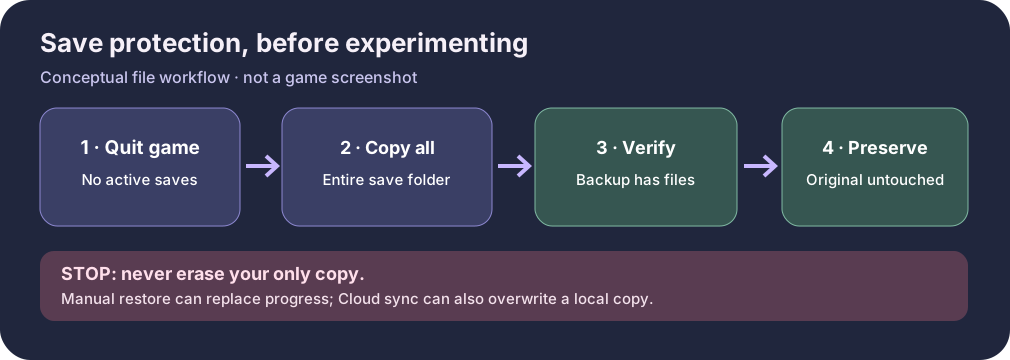
- Finish what you’re doing and fully quit the game. The developer warns to copy the folder only while the game is closed. Do not copy files while a pour/save action is running.
- Open the save folder for your operating system using the exact path above. On Windows, paste the
%USERPROFILE%path into File Explorer’s address bar; on Mac, use Finder’s Go > Go to Folder… and paste the~/Library/path. Those are OS navigation actions, not in-game controls. - Copy the entire folder’s contents into a separate backup folder. Name it something meaningful, such as
A-Place-for-Every-Potion-before-New-Game-2026-10-29. The developer specifically warns against copying only selected files. - Keep the original folder untouched. Confirm your backup destination actually contains files and that you can browse it. If it is empty or the source folder cannot be found, stop rather than guessing which files to erase.
- Store a second copy somewhere independent if this progress is important to you. This is ordinary precautionary advice: a copy on the same device is still vulnerable to a disk failure.
Can I start a second run or switch back?
The developer says that, after creating a full backup, you can start New Game and later swap complete save-folder contents while the game is closed. This article does not recommend removing your only working save or treating manual swap as independently verified. Replacing the live folder is destructive to the currently active run if you have not made and checked its backup.
If you want to experiment, first verify that each run has a separate complete backup and review Steam Cloud’s behavior for this title. Do not assume two copies are safe merely because their folder names differ. For switching steps beyond the copy-only procedure, use the developer’s original response and proceed only if you accept that risk. If the game does not load the expected progress, do not repeatedly overwrite folders; preserve every copy, note your version and ask the developer for recovery guidance.
How this differs from New Game II
The October launch notes describe New Game II as a new challenge after the laboratory is complete. The developer said it creates a new save and clears the finished lab, while keeping settings. That is not evidence of multiple simultaneous save slots. A manual backup is particularly sensible before moving from a completed first lab to that next level, even though the game’s ordinary pours and placements autosave.
FAQ
Will Steam Cloud give me separate save slots? The developer describes Steam Cloud synchronization as another complication, not a built-in multi-slot interface.
Should I delete the save folder? No. Never delete the only copy to troubleshoot. Preserve the source and a verified backup before contemplating a swap.
Can I copy only the newest file? The developer explicitly says to copy everything in the folder, not individual files.
Where are the Mac saves? The developer lists ~/Library/Application Support/CubeQuad/A Place for Every Potion. The game’s Steam system requirements specify Apple silicon, not Intel Mac compatibility.
Are these instructions guaranteed for every update? No. They reflect the developer’s October 28 reply. Recheck if a patch changes its storage layout or Steam Cloud integration.
Sources, transparency and safety
- Developer-confirmed path and backup guidance (Steam reply October 28, 2026): https://steamcommunity.com/app/5189500/discussions/0/594069880290994935/.
- Official mechanics, autosave and platform requirements: https://store.steampowered.com/app/5189500/A_Place_for_Every_Potion/.
- What was NOT verified: a performed restore, Steam Cloud multi-device behavior, game-directory changes in a later build, or guaranteed recovery of corrupt files.
GGClue is an independent player-help site. Backups contain your progress and may be personal data; keep them in private storage, not public file-sharing links. This guide contains no copyrighted game screenshots.
Back up the entire save folder before trying to recover a potion shop
The original Steam discussion gives an exact per-user save-directory location (Windows under AppData\\LocalLow\\CubeQuad\\A Place for Every Potion; macOS under ~/Library/Application Support/CubeQuad/A Place for Every Potion). These are filesystem paths, not commands for the in-game console. Fully close the game, copy the whole directory to a separate safe place and confirm that the copy contains the expected files before opening older slots or experimenting with Steam Cloud.
If the folder is empty or absent, stop and inspect the actual installed game/account and cloud state; this is not evidence an unseen backup exists. Success for the backup task: you have a verified untouched copy from which the same game can be restored if needed. The source does not establish a guaranteed automatic rollback, a different path for every operating system version, or a repair for corrupted database content.