Checked: November 3, 2026 · Version: Early Access through Update 0.1.3.1 (October 30); exact installed build not verified · Evidence: official patch notes and launch reports · Not a verified one-click fix.
The developer’s October 23 v0.1.1 notes say startup issues and several game crashes were fixed. October 30 v0.1.3.1 later lists loading and shader fixes. These release notes update the launch status, but they do not show that each player’s startup crash or a visible menu that ignores clicks is resolved; an in-game overlay issue is a separate symptom. If the game is playable but FPS drops, use the separate performance comparison guide. If the failure occurs during session joining or world download, use multiplayer stage checks.
Step 1: Classify the failure before changing anything
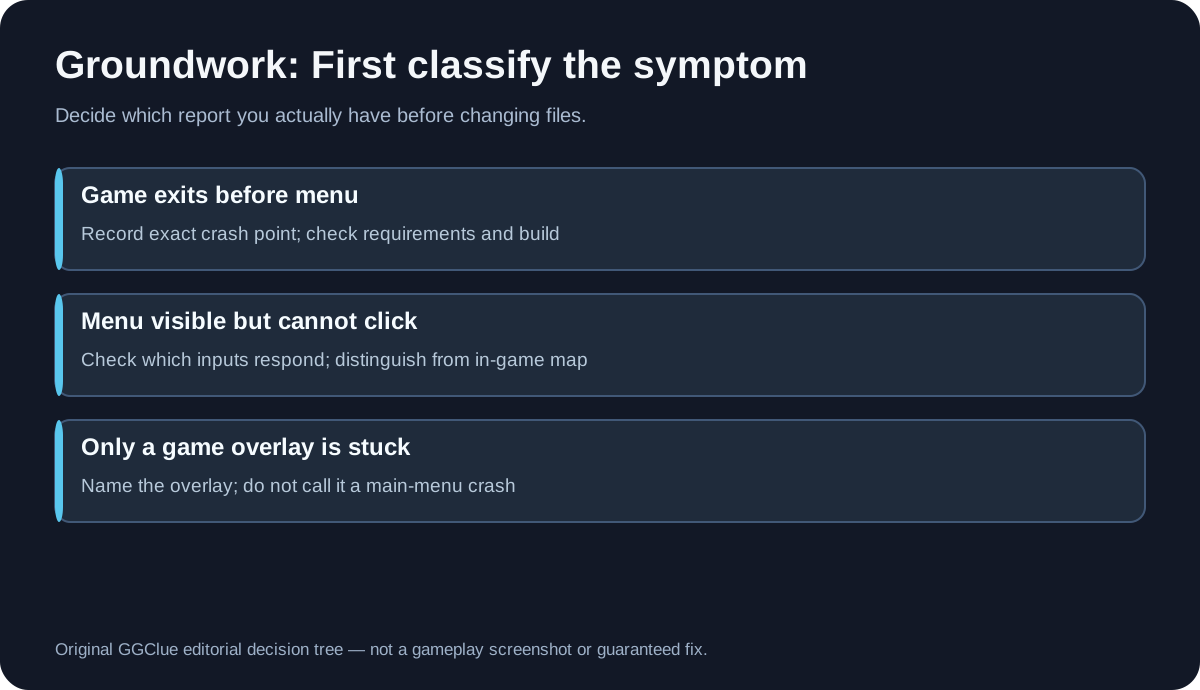
| Symptom | What it means for diagnosis | First action |
|---|---|---|
| Steam reports “Running” briefly, then the game closes or crashes to desktop | The game may have failed before the main menu could run | Record when it closes and any visible error, then check requirements |
| Main menu appears but mouse clicks do nothing | The interface is present; the fault is not equivalent to failure to launch | Check whether keyboard/gamepad interaction works, note what input devices are connected |
| You can play, but the map or another overlay seems stuck | An in-game interface issue, not proof that the main menu is broken | Describe the particular overlay; do not follow unrelated menu-crash advice |
| The game opens only when no external controllers are connected | Potential input-related correlation, not an established Groundwork fix | Record precisely which model changes behavior; avoid asserting a proven cause |
This classification prevents unproductive advice. One Steam user suggested using the P key if the in-game map had previously been opened. The original main-menu reporter said they could not click the menu at all. The P-key suggestion is not a demonstrated fix for a non-responsive main menu.
Step 2: Check the official platform requirements
Consult the Groundwork Simulator Steam store page and compare your exact PC against the latest listed requirements. At this review, the Windows section included Windows 10, 64-bit hardware, at least 16 GB RAM and DirectX 12; the game also listed Apple Silicon Mac hardware requirements. CPU-heavy soil and water simulation is mentioned in the official requirements, but that alone does not diagnose an immediate startup crash.
If your system is below the requirements, record that fact. If it is above them, the launch reports show that a software issue remains possible. A stronger GPU is not a reason to deny a player’s crash report.
Step 3: Make low-risk checks only
- Close and reopen the game once to establish whether the problem is repeatable. If the game repeatedly crashes, stop cycling through risky interactions.
- Check whether Steam offers a game update. This is not proof that a promised hotfix has shipped; note the actual installed version and date if visible.
- Use Steam’s built-in file verification if the game installation might be incomplete: in Steam, open the game’s Properties and look for Installed Files → Verify integrity of game files (label can change with the Steam client). This is a general Steam diagnostic, not a proven Groundwork-specific fix.
- If you changed graphics settings immediately before the failure, include that fact in your report. Some players reported this sequence. There is no verified official configuration reset path in the evidence collected here: do not erase or replace configuration files based on guessed paths.
- For a main-menu click issue, record whether mouse, keyboard or gamepad inputs respond differently. This information may separate an input/UI issue from a crash; it is not a confirmed remedy.
Step 4: Report the exact case to the developer
A useful report includes your OS, CPU/GPU, RAM, game version, input devices and exact last visible screen, plus an error message or screenshot if there is one. State whether the game closes immediately, remains open without accepting clicks, or fails only after changing a certain setting. Send the report to the official developer community via the pinned patch thread or its linked official Discord.
Do not submit credentials, third-party tools with administrator rights, private account tokens, untrusted executable logs or personal identifying information. A list of reproducible steps is normally more useful than a claim that the game simply “doesn’t work.”
Known status and what not to claim
The October 23 v0.1.1 announcement says startup issues and several game crashes were fixed. The October 30 v0.1.3.1 patch notes list loading and shader fixes. These general fixes are relevant, but they do not confirm that a specific player’s startup exit or non-responsive main menu is solved. Earlier developer launch discussion and reports of a non-responsive menu and launch failure remain useful context. Keep the distinction between startup, visible-menu input and in-game overlay symptoms; avoid headlines such as “Permanent Fix” or “Solved on All PCs.” See the official update history and v0.1.1 patch note archive.
Image placement: Use the official gameplay overview for authentic game context and the included original editorial launch symptoms flowchart directly above the classification table. Alt: “Editorial flowchart distinguishing Groundwork Simulator launch crash, unresponsive main menu, and in-game overlay symptoms.” Caption: “Original GGClue troubleshooting diagram; not a game screenshot or a confirmed fix.”
FAQ
Should I press P if the main menu won’t click?
Not based on the evidence here. That keyboard suggestion referred to an already-open in-game map, while the complainant specifically described an unresponsive main menu.
Is reinstalling guaranteed to fix it?
No. A player reported reinstalling more than once without making their main menu clickable. Reinstallation is disruptive and is not a verified solution for this issue.
Do I need to delete a settings file to get back into the game?
No confirmed settings-file path or developer-approved reset procedure has been established. Do not delete or replace an unknown file.
Does a startup crash automatically mean insufficient PC specs?
No. Requirements are one check among several, not a diagnosis. Report the exact point of failure and whether it persists after low-risk verification.
How will I know the launch issue has been patched?
The v0.1.1 update says startup issues and several game crashes were fixed, and v0.1.3.1 lists loading and shader fixes. Those general statements do not identify every individual startup failure or a visible menu that ignores clicks. Check your installed build and exact symptom; do not assume an in-game overlay suggestion repairs the main menu.
Sources
Official product and requirements · Official Groundwork update history · v0.1.1 patch note archive · v0.1.3.1 patch note archive · Developer launch patch plan · Main-menu discussion · Launch-crash discussion.
Independent GGClue editorial guide, verified November 3, 2026. No first-hand bug reproduction is claimed. Groundwork Simulator is the intellectual property of its respective owner.
Related: Groundwork Simulator help hub · dual joystick thrustmaster 0 2 · spray paint crash